
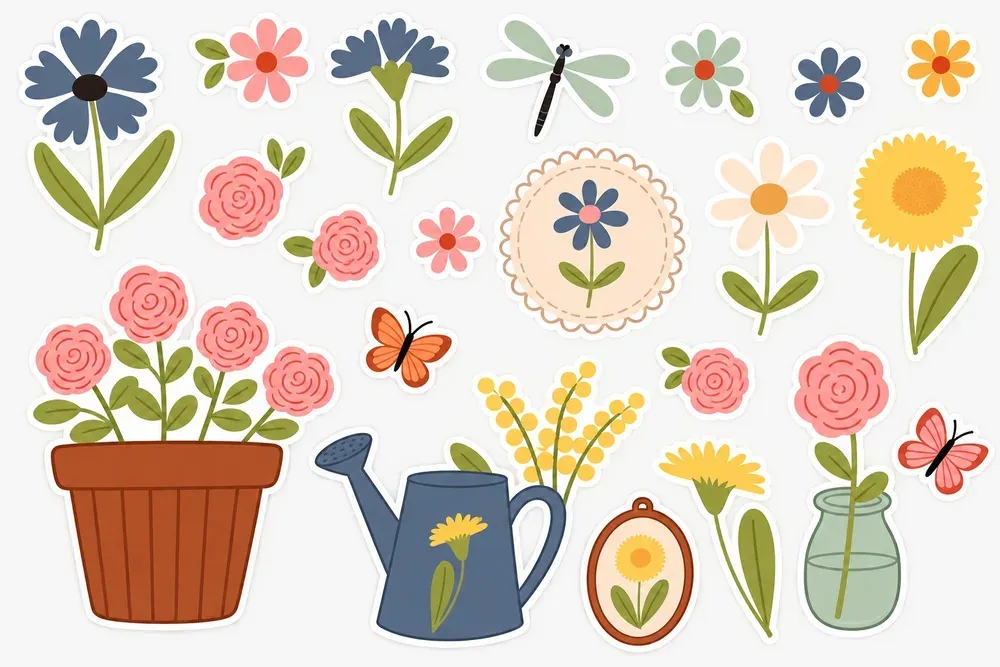
A clipart bundle is a box of ingredients, not a finished dish. Here is how to get from a folder of PNG files to stickers, cards and journal pages that look like they were drawn for them.
Start with the transparent background
A PNG with a transparent background has no white box around it, so a flower can sit on a colored card or overlap a photo without a visible rectangle. When you open the file, a gray-and-white checkerboard behind the artwork means the transparency is there. If you see solid white instead, the app you used probably flattened it, so re-import the original file rather than the copy.
Work out how big you can print
For print, divide the image’s pixel width by 300 to get its comfortable size in inches. A flower that is 1500 pixels wide prints sharply at 5 inches; a 3000-pixel illustration at 10 inches. You can push to about 200 pixels per inch for things seen at arm’s length, like posters, but small items such as stickers are held close, so stay at 300.
Going smaller is always safe. Going bigger than the file supports is how crisp line art turns soft.
Stickers
- Cricut: upload the PNG, choose “Print Then Cut”, and Design Space traces the edge for you. Give each piece a small offset (a white border) so slight misalignment doesn’t clip the artwork. Check the maximum Print Then Cut size for your machine before laying out a sheet.
- Silhouette: use the trace tool on the transparent edge, then add an offset the same way.
- Planner stickers: mix sizes on one sheet. One large hero piece, three medium, and small accents to fill the gaps waste far less paper than a grid of identical squares.
Cards and invitations
Pick one illustration to lead and let the rest support it. A single large bouquet with two small butterflies reads as designed; six equally sized pieces scattered around the edge reads as clipart. Leave the text an uncluttered area, and pull your text color from the artwork itself. Most design apps have an eyedropper for exactly this.
Journals and scrapbooks
For digital journals (GoodNotes, Notability, Procreate) drag the PNGs straight in; transparency carries over. For paper journals, print a sheet of your favorite pieces at mixed sizes on matte photo paper or sticker paper and keep it in the back of the book, so decoration is ready when the page is.
Selling what you make
Check the license on the product page before you list anything. The usual line is simple: you can sell the sticker, the card or the printable you made, but not the clipart files themselves, or anything a buyer could pull the artwork back out of.
